

Summary
Mastering the mechanics of Boomi Document IDs and Properties ensures that enterprise data remains consistent and traceable during complex operations like splitting, branching, and error handling.
- Splitting a document often results in multiple child records sharing the same Document ID, which can cause an Exception shape to fail the entire batch even when configured to continue.
- Placing a Try/Catch shape before splitting documents assigns a unique ID to each segment, enabling granular error handling that halts only the failing document.
- Document Properties function as variables attached to specific IDs, but their scope is restricted; for example, properties set within one branch are generally inaccessible to other branches.
- Most modern Connectors, Message shapes, and Subprocess calls now preserve the original Document ID and its associated properties to maintain data continuity throughout the workflow.
Precise management of document scope and IDs is essential for building resilient integrations that avoid unexpected data loss or process-wide failures.
Table of contents
Introduction
Boomi offers a powerful suite of tools that can help accomplish almost any enterprise goal. However, it also has a few finer points and edge cases that are often misunderstood, leading to unexpected results and potential frustration.
This is the first entry in a series that will go deep into the details, each focused on a different Boomi topic. The goal is to document specific Boomi behaviors that can sometimes catch a developer off guard. This first article will cover Boomi Documents, a foundational concept that underpins a lot of Boomi functionality.
I. Boomi Documents & Document IDs
Boomi Documents are the discrete, conceptual units of data that flow through a Boomi integration. Each represents a logical piece of information. For example, a Document might be an employee record, the JSON payload to be sent to an API, or the body of an email on its way to a mail connector. Boomi is built on the Document; it’s where your logic runs. Even when you use a “No Data” Start shape, Boomi sends an empty Document forward, just to make progress!
Document IDs, in turn, are the unique reference codes that Boomi uses to track individual Documents as they flow through an integration.
The Document ID is an important concept, as it is an integral component of many everyday Boomi functions, such as setting useful Document Properties or identifying the Document that failed when an error occurs. When does the Document ID change to represent a new Document? When does it not change? Understanding these points can be critical to building a successful integration.
In no particular order, here are a few things to remember about how the IDs are handled.
Splitting Documents (and the effect on Exception Shapes)
Let’s start with a simple example. We have a little flat file that will be split into three Documents. In this example integration, the Decision shape is configured to ensure that one of these Documents generates an exception, while the other two do not.
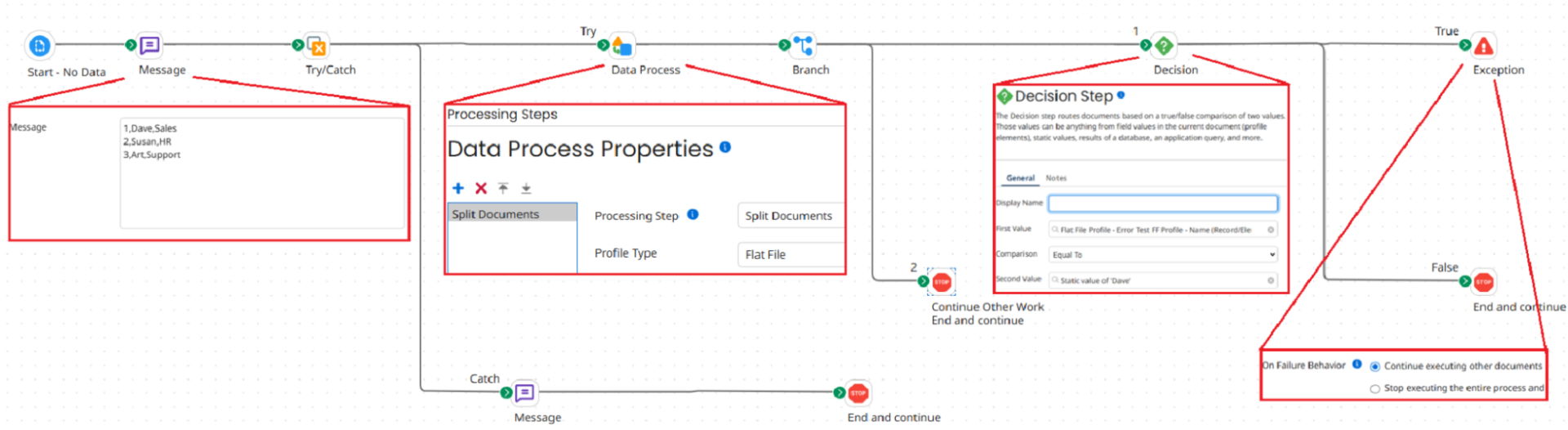
Because the Exception is set to “Continue Executing Other Documents,” you would probably expect that only the single failing Document would be halted, while the other two would continue through the integration. However, let’s see how it runs in practice:
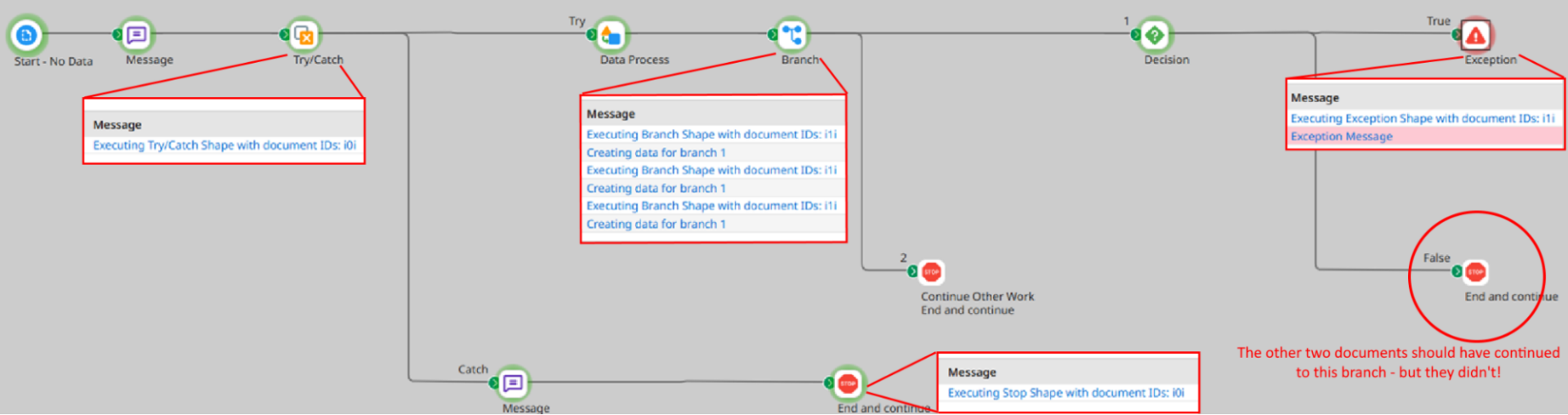
The Exception prevents the other two Documents from proceeding, despite the setting!
For an explanation, notice the Document IDs. The initial Document containing all data was identified as ID i0i. After the split, the three resulting Documents all have the same ID, i1i. Once an exception occurs for one of them, the entire set is declared in error, even though the “Continue Other Documents” setting is selected in the Exception shape.
This is because all Documents split from an original are linked to that original. If one of them fails, it’s considered a failure in the “parent” Document, and so all “child” Documents fail. Essentially, we may have it set to allow other Documents to continue. Still, there are no other Documents to continue with – since there is really only one Document from Boomi’s perspective.
Try/Catches and Document IDs
In the example above, notice that the Try/Catch reports that Document i0i failed and was sent down the Catch path. However, it was Document i1i that actually encountered the error. This is because the Try/Catch attempts to process the Document it received (here, i0i), and even if that Document is later split into smaller Documents (here, i1i), they are all linked back to the original Document.
But now, notice what happens if you split the Documents before the Try/Catch.
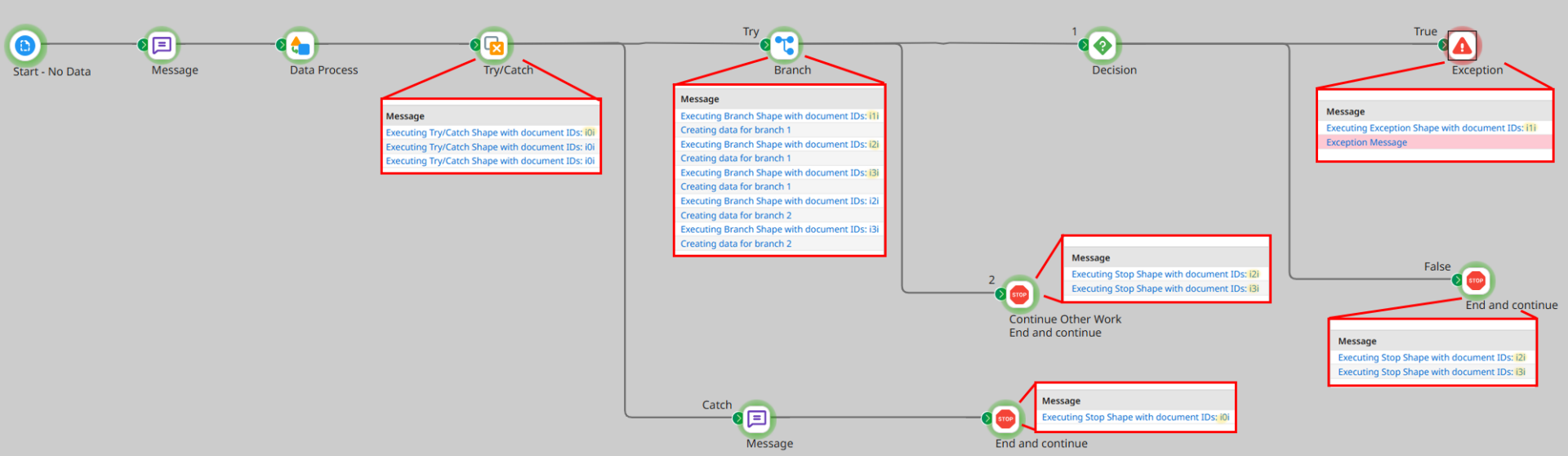
The Try/Catch still reports that the original Document, i0i, has failed. However, the Try/Catch assigns each of the split Documents their own unique Document IDs (i1i, i2i, i3i), and treats them separately for the scope of the Try branch.
Using this pattern, we now see that the exception treats our split Documents as expected: only one Document fails, while the others proceed past the Decision shape. While the Try/Catch still associates all of these split Documents with the original, if it receives them after they’ve already been split, it assigns them unique Document IDs and handles them separately.
Documents and Branches
When a Document hits a Branch, the integration will send an exact copy of the Document down each branch. These copies will have the same Document ID but will run in parallel and will not be within the same scope. Changes made to a Document in one branch will not affect copies sent to subsequent branches.
What Doesn’t Change the Document ID?
Connectors
In earlier editions of Boomi, Documents would not survive a Connector shape. The response Document from a Connector – whether it was a GET or SEND – would run through the rest of the integration as a new and different Document. However, that has since changed! With the exception of a handful of legacy connectors (such as the older FTP connector, which is still usable), the response from a Connector is now considered the same Document, and will have the same Document ID.
Message Shapes
A message shape replaces the current content of a Document but does not constitute a new Document. The ID remains unchanged.
Subprocess Calls
When a Document flows into a Subprocess call, it remains the same Document and retains its Document ID. This continues when a Return Documents shape sends the Document back to the primary process – it’s still considered the same Document.
Cache Shapes
When you load a Document into a Cache and then later retrieve it, it will retain its Document ID and will be considered the same Document.
II. Document Property Scope
An important reason to understand the details outlined above is to enable the successful use of Document Properties and Dynamic Document Properties.
- These Properties can be thought of as “variables” attached to a Document, not part of the Document’s data payload.
- Document Properties, also known as Standard Document Properties, are predefined. Each is used to define a specific kind of system information – usually connector details – so that you can dynamically set connector attributes ahead of time.
- Dynamic Document Properties are user-defined variables that can represent any data you like.
Document Properties and Dynamic Document Properties are powerful tools, especially when multiple Documents will be flowing through at once. Unlike the “global variable” nature of a Dynamic Process Property, a Document Property is a value set for a specific Document, and can’t be changed by the behavior of other Documents as they move in tandem through an integration workflow. However, you do need to be a little more careful in their use, as there are rules and limitations on when they will be accessible – rules and limitations usually tied to the Document ID considerations discussed above.
Document Properties and Try/Catches
If you want to access the Property value anywhere outside of the Try branch, a (Dynamic) Document Property should be set before the Try/Catch shape itself.
Properties set on the Try/Catch
If one is set after the Try/Catch shape, the (Dynamic) Document Property will be assigned to the new split Document ID the Try/Catch creates, and it will not be accessible outside of the scope of the Try branch. This limitation extends to the Catch branch, as well! Even the Catch branch is outside of the Try Branch’s scope.
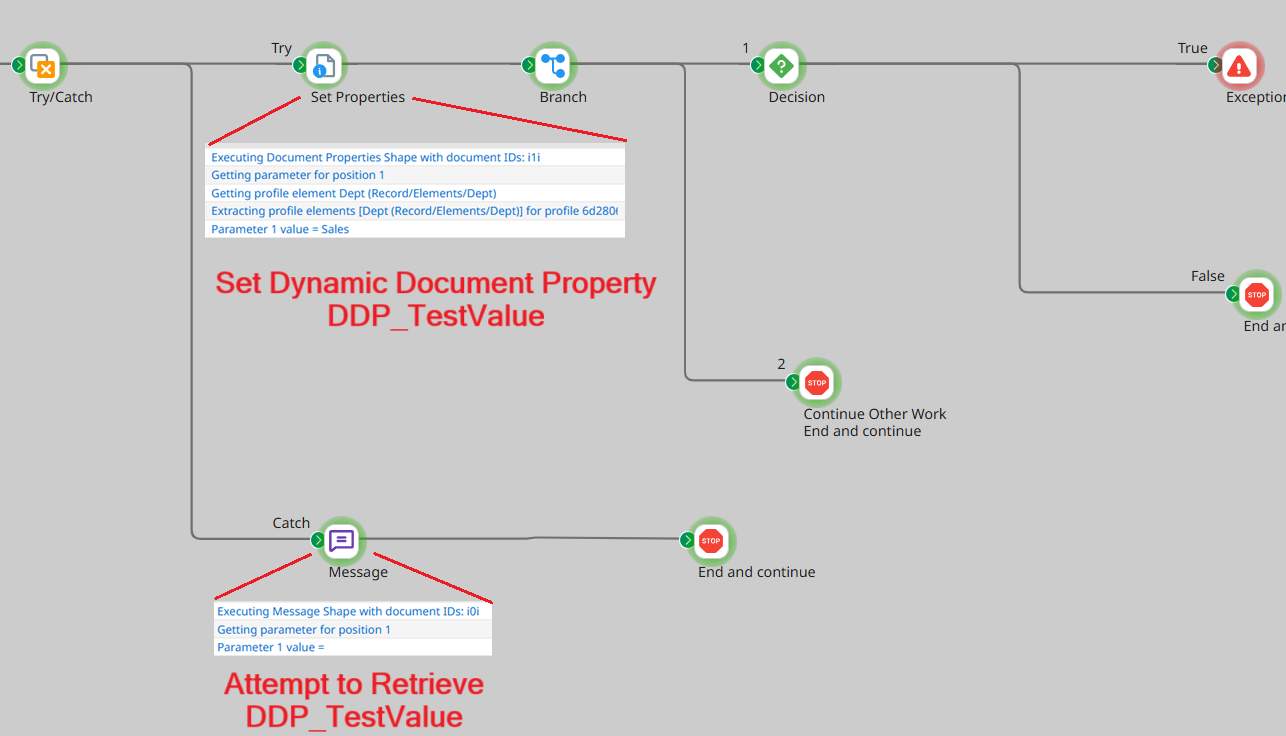
In the example above, notice that DDP_TestValue comes up empty, despite being set in the Try branch. The reason is obvious from the Document IDs: notice that Property was set for the split-off Document ID i1i, while the Catch branch is in the scope of the parent Document i0i.
Properties set before the Try/Catch
Properties set before the Try/Catch will be available within both the Try and Catch branches. Note that this represents an exception to the usual behavior of the Document ID and its properties. As covered above, the Try branch will change the Document ID of any Document it tries, yet all properties assigned to that Document remain unchanged.
Document Properties and Combining Documents
If you use a Data Process shape to Combine Documents, it will retain the Document IDs of all Documents combined (if they differ). You’ll actually see them listed out, like so:

However, if you had set any Document Properties or Dynamic Document Properties, only the values assigned to the first Document in the set will be retained. In this situation, if you attempt to retrieve a Dynamic Document Property you previously set, you can retrieve the value for i1i, but the values assigned to i2i and i3i are lost.
How about Splitting Documents?
When a Document is split, all resulting “child” Documents will inherit any Property values assigned to the original Document. For example, let’s say I had a single batch Document containing all employee records. If I assigned it a Dynamic Document Property named DDP_EmployeeStatus and set that value to “Active,” and then later split the batch Document into individual records, each split-off Document would have a DDP_EmployeeStatus of “Active.”
Document Properties and Cache Shapes
A Property will successfully pass through a cache shape. One set before storing a copy in a cache will persist and remain accessible after retrieval.
Document Properties and Branch Shapes
A Property set on one branch will not be accessible in another branch. Remember that each branch gets its own copy of a Document to run with! Even though the Document IDs will be the same between branches, they are still not in the same scope.
Connectors
Document Properties will transfer across most Connectors because the Document ID now survives a Connector shape, as explained above. Even a GET or QUERY will not wipe your Document Properties.
Message Shapes
Similarly, Document Properties will carry across a Message shape. Importantly, a Message shape does not spawn a new Document; instead, it replaces the content of the current Document running through the integration, and so the Document Properties assigned to that Document ID continue to apply.
Conclusion
This article is by no means exhaustive, but hopefully, it clarified a few things about how Documents function. And with that clarification, it could have prevented a headache or two in the future. There are many other waters to navigate to use Boomi successfully, and XTIVIA is happy to help you through any implementation.
Please contact us if you’d like to learn more about how we can help you achieve these goals!
Additional Reading
Boomi Help Documentation on Document Properties