

SUMMARY:
Developers can enhance the reliability and performance of legacy JavaScript in Liferay by integrating modern Webpack build processes and TypeScript guardrails into a blank global client extension.
- Initialize a designated Liferay workspace folder and use Yarn to install essential npm build tools, including Webpack, TypeScript, and ESLint.
- Configure the
client-extension.yamlfile to define the global JavaScript extension and adjust the Webpack settings to encapsulate the minified code within an immediately invoked function expression (IIFE). - Build the application using the designated Webpack scripts, then deploy the extension to a Liferay instance to validate functionality and enforce linting rules.
Adopting this structured build approach prevents absent-minded bugs and minimizes technical debt for JavaScript integrations that do not require a full React or Vue application architecture.
Table of contents
Introduction
I’ve noticed a dichotomy in JavaScript development. On one end, you have modern React/Vue elements that attach a self-contained app with its own virtual DOM to an element. Build tools like Vite make it easy to bootstrap an environment with TypeScript transpilation, linting, module import, and minification. In Liferay, these are pretty easy to add with custom element client extensions, and there are a variety of sample client extensions to help you out.
On the other end, you have your legacy JavaScript, which is usually used to add interactivity to a Server-side generated website, ideally contained in an IIFE to avoid cluttering the global scope, that interacts directly with the webpage’s DOM. I’m sure you’re thinking of a series of unminified jQuery function calls in a script tag. For those, Liferay provides JS global client extensions, and the samples go straight from source to the browser.
But there is an often-ignored use case in the middle. Sometimes you want to add JavaScript that doesn’t really make sense as a React App, but you want the guardrails and performance that a modern TypeScript and Webpack build process offers.
We’re going to go through the process of creating a blank TypeScript global client extension from beginning to end. I’ve also included the finished product at https://github.com/xtivia/liferay-7-4-sample-client-extension-typescript-global-js.
Prerequisites
This assumes you already have Yarn, Liferay’s package manager of choice, installed, as well as a Liferay Workspace. If not, you can follow the directions in the official documentation:
Initialize your workspace
First, let’s create the folder in your workspace’s client-exensions folder.
cd ./client-extensions
mkdir liferay-7-4-sample-client-extension-typescript-global-js
cd ./liferay-7-4-sample-client-extension-typescript-global-js
Now let’s initialize yarn, which creates a package.json file. Here are the values I added:
lbehar@xtivi0614 liferay-7-4-sample-client-extension-typescript-global-js % yarn init
yarn init v1.22.19
question name (liferay-7-4-sample-client-extension-typescript-global-js):
question version (1.0.0):
question description: A sample Typescript global client extension for Liferay 7.4
question entry point (index.js): index.ts
question repository url: https://github.com/xtivia/liferay-7-4-sample-client-extension-typescript-global-js
question author: [email protected]
question license (MIT):
question private:
success Saved package.json
 Done in 55.65s.
Install and configure build tools
NPM Dependencies
First, install your build tools. We’re using Webpack, TypeScript, and ESLint.
yarn add --dev webpack webpack-cli webpack-dev-server typescript ts-loader eslint @eslint/js typescript-eslint eslint-webpack-pluginNow we’re going to install Liferay’s JS API.
yarn add @liferay/js-apiConfig files
First, we have to tell Liferay it’s a client extension; otherwise, Gradle won’t deploy it. This is going to be a global JS extension that is included sitewide via a <script> tag in the head.
./client-extension.yaml
assemble:
   -   from: build/static
       into: static
liferay-7-4-sample-client-extension-typescript-global-js:
   name: Liferay 7.4 Sample Typescript Global JS Client Extension
   scope: company
   scriptLocation: head
   type: globalJS
   url: index.*.js
Now create your tsconfig.json file. “jsx”:”react” isn’t there because we’re not using React.
./tsconfig.json
{
   "compilerOptions": {
       "esModuleInterop": true,
       "lib": [
           "DOM",
           "ES2020"
       ],
       "module": "ES2020",
       "moduleResolution": "node",
       "outDir": "./build",
       "resolveJsonModule": true,
       "sourceMap": false,
       "target": "ES2020",
       "types": [
       ]
   },
   "include": [
       "./src/**/*"
   ]
}
Now our eslint.config.mjs. We’re using recommended configs; you can add any other rules you want.
./eslint.config.mjs
// @ts-check


import eslint from "@eslint/js";
import { defineConfig, globalIgnores } from "eslint/config";
import tseslint from "typescript-eslint";


export default defineConfig(
 eslint.configs.recommended,
 tseslint.configs.recommended,
 [globalIgnores(["**/*.js", "**/*.cjs", "**/*.mjs"])],
);
Let’s add webpack scripts to package.json. Gradle will automatically run the “build” script on Gradle deploy.
./package.json
 "scripts": {
   "build": "webpack",
   "start": "webpack serve",
   "watch": "tsc --watch"
 }
Next, we need a webpack.config file. Here’s a modified version of Liferay’s sample JS client extension config.
./webpack.config.js
/**
* SPDX-FileCopyrightText: (c) 2000 Liferay, Inc. https://liferay.com
* SPDX-License-Identifier: LGPL-2.1-or-later OR LicenseRef-Liferay-DXP-EULA-2.0.0-2023-06
*/


const path = require("path");
const webpack = require("webpack");
const ESLintPlugin = require("eslint-webpack-plugin");


const DEVELOPMENT = process.env.NODE_ENV === "development";
const WEBPACK_SERVE = !!process.env.WEBPACK_SERVE;


module.exports = {
 devServer: {
   headers: {
     "Access-Control-Allow-Origin": "*",
   },
   port: 3000,
 },
 devtool: DEVELOPMENT ? "source-map" : false,
 entry: {
   index: "./src/index.ts",
 },
 experiments: {
   outputModule: true,
 },
 mode: DEVELOPMENT ? "development" : "production",
 module: {
   rules: [
     {
       test: /\.ts$/i,
       use: ["ts-loader"],
     },
   ],
 },
 optimization: {
   minimize: !DEVELOPMENT,
 },
 output: {
   clean: true,
   environment: {
     dynamicImport: true,
   },
   filename: WEBPACK_SERVE ? "[name].js" : "[name].[contenthash].js",
   iife: true,
   library: {
     type: "module",
   },
   path: path.resolve("build", "static"),
 },
 plugins: [
   new ESLintPlugin({
     files: "src/**/*.ts",
     overrideConfigFile: `eslint.config.mjs`,
   }),
   new webpack.optimize.LimitChunkCountPlugin({
     maxChunks: 1,
   }),
 ],
 resolve: {
   extensions: [".js", ".ts"],
 },
};
Here’s what I added to the Liferay sample file:
iife: true,I was getting syntax errors until I set this to true. It ensures the minified code is placed in an immediately invoked function expression (IIFE), which removes the variables in the extension from the global scope.
   new ESLintPlugin({
     files: "src/**/*.ts",
     overrideConfigFile: `eslint.config.mjs`,
   }),
I love ESLlint. It’s saved me from so many absent-minded bugs and tech debt.
And finally, here’s a gitignore file.
./.gitignore
# dependencies
/node_modules


# production
/build
/dist


# misc
.DS_Store
.env
npm-debug.log
Write your app
Create a new folder called src and a file called index.ts. I wrote a little alert script.
declare const Liferay;
Liferay.on("allPortletsReady", () => {
  alert('hi');
});
Let’s run a build to make sure it works. Getting in the habit of running a yarn build first means you can fail fast if there’s an error in your app, especially as it grows in complexity.
lbehar@xtivi0614 liferay-7-4-sample-client-extension-typescript-global-js % yarn build
yarn run v1.22.19
$ webpack
assets by status 49 bytes [cached] 1 asset
./src/index.ts 85 bytes [built] [code generated]
webpack 5.105.2 compiled successfully in 825 ms
  Done in 1.38s.
Now we can run blade gw clean deploy to deploy your client extension to your Liferay instance.
> Task :client-extensions:liferay-7-4-sample-client-extension-typescript-global-js:deploy
Files of project ':client-extensions:liferay-7-4-sample-client-extension-typescript-global-js' deployed to /Users/lbehar/Liferay/projects/xtivia-lr-frontend-library/bundles/osgi/client-extensions


BUILD SUCCESSFUL in 19s
Open your local environment. The client extension should be loaded automatically.
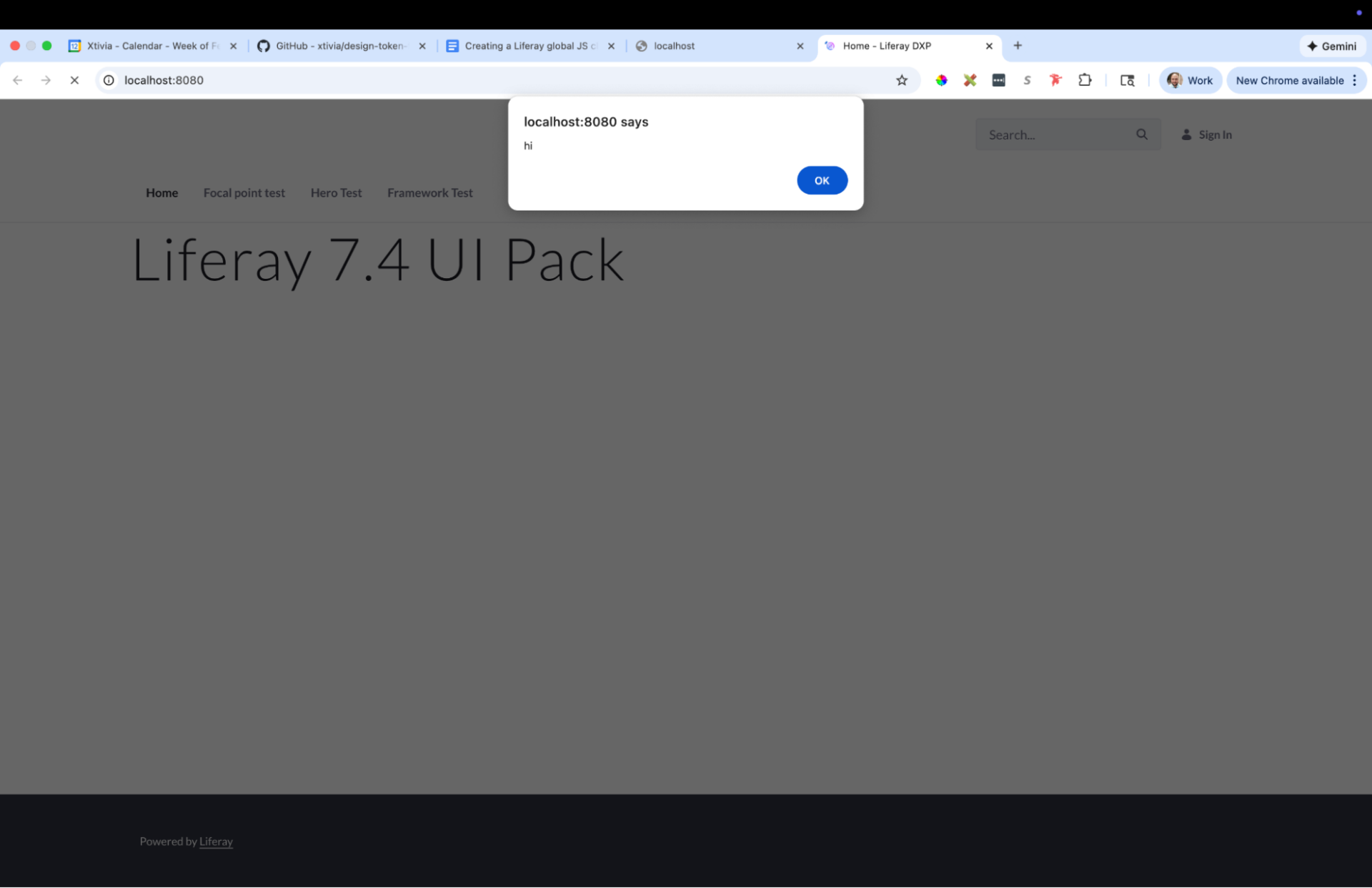
To test ESLint, let’s add an unused variable.
declare const Liferay;


Liferay.on("allPortletsReady", () => {
   const test = 123;
   alert('hi');
});
Task failed successfully!
lbehar@xtivi0614 liferay-7-4-sample-client-extension-typescript-global-js % yarn build
yarn run v1.22.19
$ webpack
[webpack-cli] HookWebpackError: [eslint]
/Users/lbehar/Liferay/projects/xtivia-lr-frontend-library/client-extensions/liferay-7-4-sample-client-extension-typescript-global-js/src/index.ts
  4:11  error  'test' is assigned a value but never used  @typescript-eslint/no-unused-vars


✖ 1 problem (1 error, 0 warnings)
And that’s it. You now have a TypeScript blueprint you can build your client extension on!
For more information, please contact us.