

SUMMARY:
Integration developers use Regular Expressions (Regex) in Boomi to precisely manipulate data and execute complex logic for routing across diverse enterprise formats.
- Developers configure targeted Search/Replace operations to normalize variable input data, eliminate specific JSON segments, and strip unnecessary XML declarations.
- Logic routing shapes leverage custom Regex patterns to accurately direct data flows based on rigorous character comparisons and string criteria.
- Advanced Regex techniques, such as capture groups and inline modifiers, empower teams to extract specific data subsets and apply multi-line validation across complex flat files.
Integration architects must systematically build and test Regex components incrementally to ensure robust, error-free data normalization and routing within their Boomi environments.
Table of contents
Introduction
Regular Expressions are a powerful tool, allowing you to reliably and precisely find text in a document or string. However, they can look intimidating to the newcomer. A block of Regex has a way of looking like “Hollywood code”: inscrutable strings of seemingly random characters. Once you know the rhyme and reason of it, Regular Expressions are logical, orderly, and sometimes the only way to accomplish more advanced data modification and comparison.
Boomi makes use of Regex in three main areas:
- Data Manipulation steps, such as Data Process > Search Replace, and the String Remove and String Replace steps in a map
- Logic routing shapes, such as a Decision or Route shape, when you select the “Matches Regular Expression” option
- In a custom script – either Groovy or JavaScript
This article will focus on the first two, covering the use of Regex in the context of these prebuilt and more narrowly focused Boomi functions.
In the Data Manipulation steps, you will use Regex to define what data you want to affect. It’s focused on the search – generally, Regex does not get used when defining the Replace value. There is one very narrow exception: see the Regex Groups section below.
In the Logic Routing steps, the second operator — the value your first field will be compared against — can be defined using Regex. Think of this as defining the search terms that will be compared against the first field’s data. The result determines whether your data is routed down the True or False paths (Decision shape), or whether it will travel down a given route branch (Route shape).
Using Regex
The Basics
In this section, we will summarize the specific operators: the building blocks that will make up any Regex expression.
| Term | Example | What it does |
|---|---|---|
| Any normal character(s) | Customer | So long as it doesn’t contain any reserved control characters, a string simply matches a string. Note that regex is case sensitive. In this example, it will only yield a positive match if it finds the exact word Customer, with a capital C. This case-sensitivity can be toggled on or off using an inline modifier (see the Inline Modifiers section below). |
| . | document.. | A dot or period will match any single character. In this example, it would successfully find document01, document32, or any other combination of two characters after “document”. By default, it will not match the newline character, however. (See below for more about multiline mode, which toggles this.) |
| + | w+ | A plus matches the preceding element one or more times. This means that w+ would be a match for w, www, wwwwwwwww, or any number of w’s in a row. |
| * | w* | An asterisk matches the preceding element zero or more times. It’s similar to a plus, except that it will also match if the value is missing entirely. |
| ? | colou?r | A question mark looks for the preceding character zero or once. In other words, it tells Regex that it’s okay if the prior character is missing. This example would match either “color” or “colour”. |
| | | gr(a|e)y | A backslash before a special character acts as an escape character. In other words, if you want to find a character that is otherwise a reserved control character, you have to escape it with a backslash. In this example, you would be searching for the open parenthesis character, and you are telling the expression not to use the parenthesis to group anything. The following is a list of the characters that need to be escaped if you want to search for the character itself: . ^ $ * + ? ( ) [ ] { } \ | |
| \<special character> | \( | Parentheses are a grouping operator that lets you control what characters your other operators act on. For example, ab+ would be a match for abbbbb, but (ab)+ would be a match for ababab, two very different things! It’s especially useful for the “|” symbol, which is the OR operator (see above). The values found by a given parenthetical Group can also be referred to in the Replace With field of a Search/Replace, by invoking its number in order of appearance. This lets you pick out subsets of your data. See the Regex Groups section below for more details. |
| ( ) | (ab)+ | Brackets establish a “character class,” meaning that any character from the set specified in the brackets will be looked for. This set can be spelled out character by character, or a range could be given. [abc] will find any character from the set a, b or c, while [a-n] would accept a range of all lowercase letters from a to n (see below for more information about ranges). It also works for numbers and special characters. It will even allow special Regex codes, such as \s, \w, and \d (see below for more about these). A special point to keep in mind about special characters here — nothing in brackets is considered a control, so you don’t need to escape anything other than a close bracket (“]”) or a hyphen (“-“). Exception: if the dash is the first or last item in the bracket list, it doesn’t need to be escaped, because the engine understands that it must be part of a list and doesn’t represent a range. |
| [ ] | [abc][&%$][\s\d] | \w matches any alphanumeric character or an underscore. This example would find test1, testG, test_, and so forth. \W is the reverse: it will match any character that is not alphanumeric nor an underscore. This means it will match whitespace and special characters. |
| [ – ] | [0-9][a-z][1-35-7] | A dash in brackets, when placed between two characters, establishes a range. It will match a single character that falls within that range. [0-9] will match any single number, and [a-z] will match any single lowercase letter. Multiple ranges can be used, so the last example would match any number from 1 to 3, and 5 to 7. |
| [^ ] | [^xyz] | When enclosed in brackets, a caret “^” is a negation. It says to match any character that isn’t one of the following examples. In this case, it will match any character that is not x, y or z. |
| { } | a{3}a{3,5} | Curly brackets tell Regex to match the string that precedes them X number of times. The first example would match the string “aaa”. Using two digits with a comma establishes a range. The second example would match “aaa”, “aaaa” or “aaaaa”. |
| \s \S | \sMy Input | \s matches a whitespace character. In this example, it would be a match for ” My Input”, but it requires the whitespace character to be there, so it would not be a hit for “My Input”. \S is the reverse: it will match any character that is not a whitespace character. |
| \w \W | test\w | \w matches any alphanumeric character or an underscore. This example would find test1, testG, test_, and so forth. \W is the reverse: it will match any character that is not alphanumeric or an underscore. This means it will match whitespace and special characters. |
| \d \D | \d{3} | \d will match any digit or integer. It’s functionally identical to [0-9]. \d{3} would match any unbroken string of three numbers, such as the area code of a phone number. \D is the reverse: it will match any character that is not a digit or integer. |
Position Anchors
These are special control operators that don’t find anything on their own, but affect how the search is conducted.
^ | The inverse of the above, a dollar sign anchors your search to the end of a string, and should come at the very end of a line. It’s useful for ensuring a line ends with a specific value. It causes the expression to start from the end and work backward, so xyz$ would match the string yz but would not match xy. |
$ | The inverse of the above, a dollar sign anchors your search to the end of a string, and should come at the very end of a line. It’s useful for ensuring a line ends with a specific value. It causes the expression to start from the end and work backwards, so xyz$ would match the string yz but would not match xy. |
Inline Modifiers
These are also control operators that don’t find anything on their own, but will tell the expression to change how the pattern is interpreted. They affect any Regex that appears to the right of the inline modifier. For this reason, they’re frequently placed at the start of an expression.
(?s) | This enables “dot all” mode, changing how the dot “.” character works. With this enabled, the dot character will also match newline characters. In functional terms, this empowers the* combination to search the entire document, even if it has several lines. Without the dot-all mode, it would stop searching when it hit the first new line. |
(?i) | This tells the expression to be case-insensitive. If you searched for (?i)boomi, it would be a hit for boomi, BOOMI, or Boomi, for example. |
(?m) | This enables multi-line mode, changing how the Anchor characters (^ and $) work. It causes them to match the beginning and end of each line, rather than the entire document. In functional terms, this lets you apply your Regex expression against each line of a multi-line document separately. |
Regex Groups
Regex Groups are a powerful option that lets you extract a subset of the document’s data when performing a Search/Replace. With this feature, you will create a series of parenthetical statements in the Search field, with each one representing a “group,” or subset of the data. You can then refer to which group you want to extract by invoking its number after a dollar sign in the Replace field.
Note that Inline Modifiers may look like Regex Groups, being bookended by parentheses, but the engine understands that these are controls and not actual data. Inline modifiers don’t count as a group for the purposes of the count.
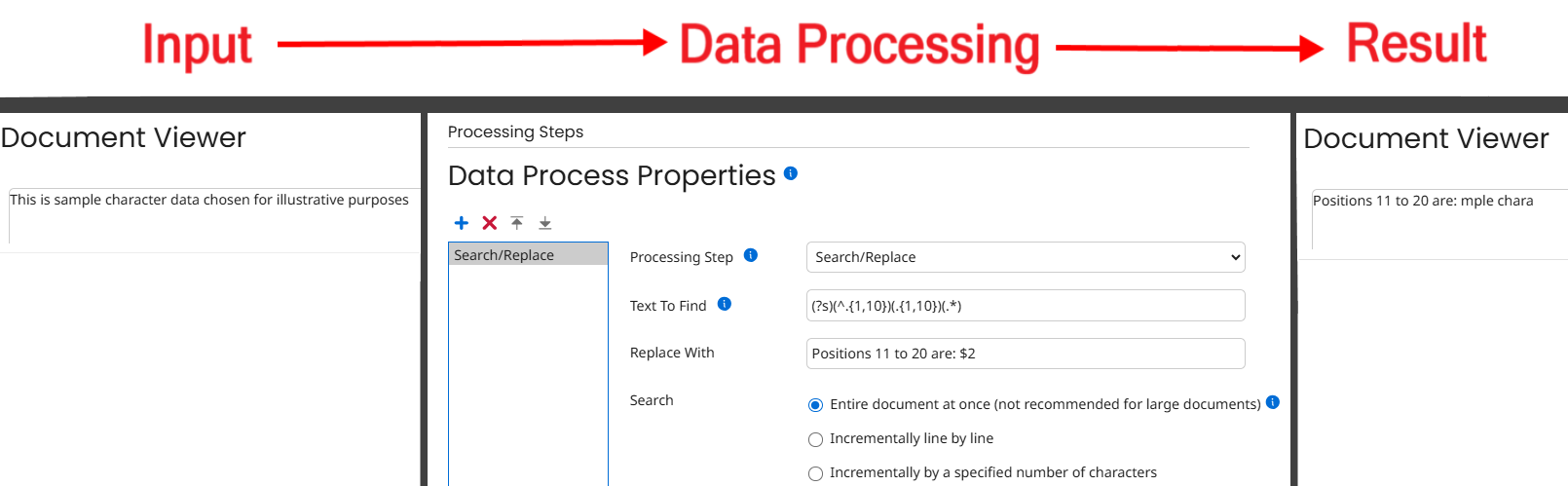
In the example below, I’ve color-coded the first, second, and third groups, respectively. The first group represents the first 10 characters in the document, the second group represents the next 10 characters, and the third group represents the remainder of the document.
Text: This is sample character data chosen for illustrative purposes
Regex: (?s)(^.{1,10})(.{1,10})(.*)
You can then refer to these groups by number in the Replace With field. In this example, you would use $1, $2, or $3 respectively:
“Replace With” set to $1: This is sa
“Replace With” set to $2: mple chara
“Replace With” set to $3: cter data chosen for illustrative purposes
So, for example, if you set Replace With to $2 When using these values, it would delete everything in the document except for the second set of ten characters, “mple chara” in this case.
Tip: “Replace With” options
You can also add other text to the Replace With field. If you put in the following:
Text To Find: (?s)(^.{1,10})(.{1,10})(.*)
Replace With: Positions 11 to 20 are: $2
The above example would yield the string “Positions 11 to 20 are: mple chara”.
Tip: Noncapture Groups
If you want to save memory, you can tell Regex not to count certain groups by putting a ?: at the start of the parenthetical(s) in question.
Normally, Regex has to remember every group for later use, so if your document is large, it can be useful to tell it not to bother with groups you know you don’t want. In the example above, let’s say we don’t care about the first group (^.{1,10}). We can keep it out of memory by adding ?:
(?s)(?:^.{1,10})(.{1,10})(.*)
Note that a “noncapture group” does not count against the group numbers. With this change, you would now use $1 and $2 to refer to the last two groupings, respectively.
Tip: Search Options in the Search/Replace
Note that you will want to set the Search radio button to “Entire document at once.” If Boomi only loads the data incrementally, it will not correctly divide the entire document up, and will perform the action on each increment one by one. This will result in the expression not functioning properly. For a similar reason, you will want to start the Regex expression with the (?s) flag, so that it will search the entire document regardless of the number of lines.
Putting It Together
Here are some simple, modular formulas you can use like building blocks:
.*.+ | .* means “match any string of any length.” You’ll find that this pair of characters is the workhorse of Regex expressions and is very commonly used. It will match everything, bounded only by the terms you bookend it with. If you entered START.*FINISH, it would match START FINISH, START “My text goes here” FINISH, or any other combination that falls between those strings. The combination .+ is similar, but requires at least one character to be present. In other words, it means “match any string of length 1 or greater.” |
.*? | This modification to .* causes it to be “lazy”, or “non-greedy.” This means that it stops after finding the first instance that matches the pattern. This is useful for matching data with repeating patterns such as XML and JSON. For instance, looking for <employee>.*</employee> would flag an entire list of employees — starting with the open of the first segment and ending with the close of the last segment. On the other hand, <employee>.*?</employee> would only return the first <employee>data</employee> set it finds. |
[0-9]* | Match any string of numbers of any length. |
[a-zA-Z] | Match any single letter regardless of case. |
[0-9a-fA-F] | Match a single hexadecimal digit. |
(\d+.?\d*|\d*.?\d+) | Match a number that might be a float (has exactly zero or one period in it). It uses an OR operator to toggle which side of the period is optional, so that it can match 1, 1.0 or .1 equally as well. |
\;$ | Confirm that a line ends with a semicolon. |
\s*^\s*\s*$ | Matches all whitespace in a given section, no matter how big. Another important feature is that this will also match no whitespace at all (thanks to the asterisk), meaning it can be used without fear of throwing false negatives. This is particularly useful for selecting and clearing leading or trailing whitespace, which is illustrated in the bottom two examples. These anchor the search to the beginning (^) or end ($) of the string, respectively. |
[%$&?#_/\@!] | Find anything from this list of special characters. This is especially useful for sanitizing input where special characters will cause problems downstream. You would customize the list in the brackets to cover any special characters that would cause trouble, and/or which occur with any frequency in your environment. Note that you don’t need to escape these special characters when they are within a set defined by [ ] brackets like this, with the only exceptions being a close bracket (]) or dash (-), as these have special meanings within brackets. |
[12][0-9][0-9][0-9] | Find a year. The digits in the first brackets define a set containing either 1 or 2. |
[A-Z][a-z]+ | Find a word with a capitalized first letter, such as a proper name. |
^\s+$ | Match input that is blank, but not null, containing only whitespace. (Bookending the expression with ^ and $ means to anchor to the start and finish – it means you’re looking at the entirety of the input at once. The \s+ in the middle will match one or more whitespace characters.) |
\w+@\w+.\w{2,6} | Match most common email addresses. (One or more alphanumeric characters as the name, @ symbol, one or more alphanumeric characters as the domain, dot, then 2 to 6 alphanumeric characters for the domain suffix.) |
| ([0-9]{1,3}.){3}[0-9]{1,3} | Find an IP address. (Three groups of one to three digits each, followed by a dot, then a single group of one to three digits that does not end with a dot.) |
Tips
Staying Sane while Building Regex
Remember: always start small, test every time you add another operator, and build your expression up in stages. For example, if you needed to do a Search/Replace for a mixed 30-character string, get a simple Regex search for a few of the characters working first. Then, add the next logical batch of operators, then the next, so you’re always testing one piece at a time.
Search/Replace vs Decision Formatting
Remember that Search/Replace and Decision shapes have slightly different Regex requirements. In a Search/Replace, you only need to build the Regex to find the substring that you’re specifically looking for. In a Decision shape, you have to account for everything else in the field or dataset you’re inspecting.
For example, say the string in question is the word “test,” but you know that it might appear in three possible forms: test, TEST, and Test.
- In a Search/Replace, you only need to account for the word itself.
(?i)testor(T|t)(est|EST)alone would find that word in and amongst the other data. The Search/Replace shape already assumes you want to search the entire document. - In a Decision shape, you’re checking the entire content of the field against your search terms. If you know there will be other characters along with the term you’re searching for, you have to account for that additional data. Something like
.*(?i)test.*would be one way to pick out your target from the rest.
Carriage Returns and Line Feeds
This is a topic that often causes headaches in Boomi. On paper, \r is a carriage return and \n is a line feed, and they need to be enclosed in brackets. In practice, Boomi is very particular about how this is formatted.
When searching for a match
Use [\r\n]. Whether in a Decision shape or the “Text to Find” field of a Data Process > Search/Replace, it is looking for a CRLF, and that is only successfully found when using the [\r\n] format.
When adding a Carriage Return + Line Feed
Use [\r][\n]. This isn’t technically Regex, but it’s worth pointing out that the CRLF format that works for a Regex search won’t work when formatting new data, such as in the “Replace With” field of a Data Process Search/Replace step.
Real-World Boomi Implementations
We’ll close out the entry with a few examples of how to use Regex to succeed in accomplishing real-world Boomi solutions. In all cases, this is only a guide or framework – you will have to adjust the details given to fit your data. We will also break down each Regex expression into “layman’s terms”, explaining what each character does in order. All solutions given here have been tested in Boomi as of the March 2026 release.
Normalizing Data
Normalizing data is useful when making comparisons with data that can vary superficially, usually due to user input.
A lot of normalization can be done with the standard Boomi string functions. Using “Text to Upper”, for instance, is a good way to ensure that case doesn’t become an issue on comparison (provided your later Decision shape puts everything in upper case). Similarly, Boomi has standard Whitespace Trim string functions to eliminate leading and trailing whitespace, and a String Concatenation function if you need to combine several fields (common when comparing addresses).
Regex can have a role to play as well. For example, let’s say you need to check whether a phone number matches a set value, but the input is user-generated. You could have (555) 555-5555, or 555 555 5555, or (555)555-5555, or any number of little permutations that don’t mean much to the human eye but are everything to the machine. In these situations, Regex is a great way to perform a smooth comparison.
If you only need to use Regex to search for a single specific criteria, you can simply use it in the search string of your Decision shape. If you need to check for several potential variations, you’ll need to modify the data to be used for comparison ahead of time using Search/Replace steps. Of course, if the field in question is actual payload data you don’t want to modify, you can save the field data somewhere safe, manipulate the copy, and then use the copy for the comparison.
Search/Replace Normalization
In these examples, leave the Replace With: field blank. This will be interpreted as NULL and simply delete what the Regex finds.
Text to Find: [\D]
This will eliminate anything that isn’t a number, including whitespace. This is useful for zip codes, ID values, and phone numbers. (555) 123-7654 would become 5551237654.
Text to Find: [\d\s]
This will eliminate any numbers or whitespace. This is useful for proper names or other values that should only have alpha characters. “Joh 1n” would become “John”. However, “New York” would become “NewYork”, so either take that into account in your Decision shape, or modify this expression to fit your use case!
Text to Find: ^\s*
Text to Find: \s*$
These will specifically eliminate leading and trailing whitespace. ” Sales” would become “Sales”.
Decision Shape Resilience
Finally, you can also take some action to insulate a Decision shape against variations in your data. As an example, if you’re checking whether a field is equal to the string Value, you could use the following:
(?i)\s*Value\s*
This will search for Value without case sensitivity, and will ignore any leading or trailing whitespace, if any of these are concerns for your input data.
Modifying JSON
There are occasional edge scenarios where you will have a fixed JSON document containing segments that will need to be excised.
Eliminating a JSON Segment
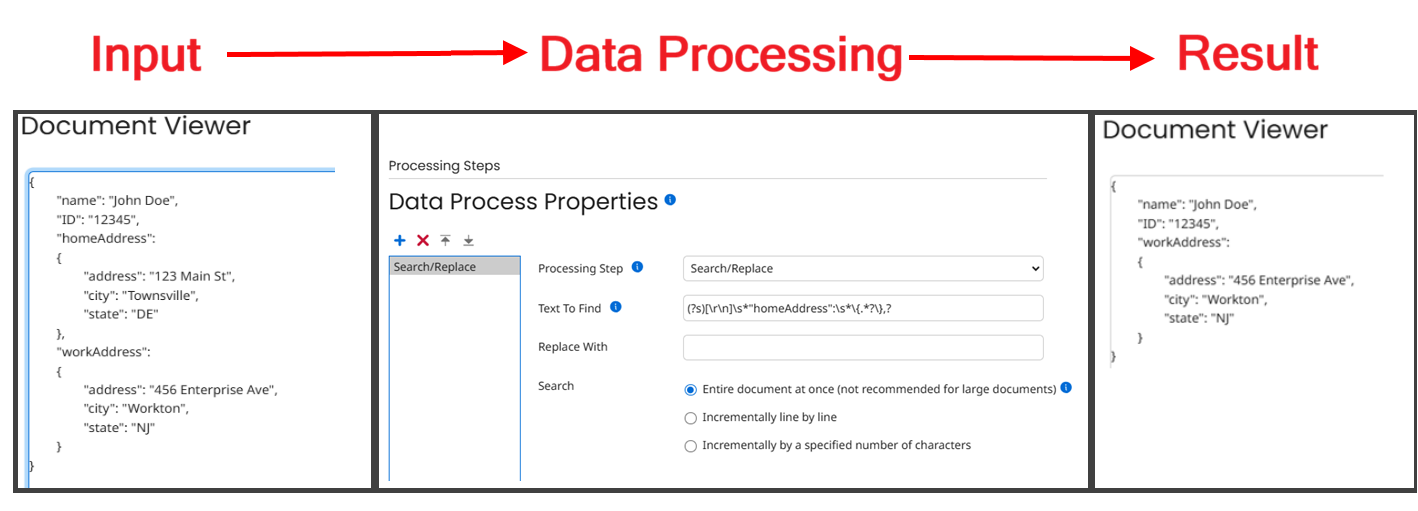
You can find and eliminate a JSON segment using the following Regex using a Data Process > Search/Replace. Replace the word segmentName with the actual name of your segment.
Text To Find: (?s)[\r\n]\s*"segmentName":\s*\{.*?\},?
Replace With: <leave empty>
In layman’s terms, this expression tells it to search the entire document (?s), find a carriage return and line feed ([\r\n]) followed by any amount of whitespace (\s*), all followed by the target segment name (“segmentName”:). This should then be followed by a single space (\s), then an open curly bracket ( \{ ), followed by any amount of data, but ONLY once (.*?) that is punctuated by the close bracket ( \} ) and optionally a comma (,?).
The question mark after the dot-star (.*) is very important here, because otherwise it will wipe out all data it finds up until the last curly bracket in the document!
The final comma is given a question mark to make it optional – a question mark after a simple character says to match that preceding character zero or once. Most JSON segments will end with a comma, but the final segment will not, so this distinction is necessary.
Emptying Out an Array
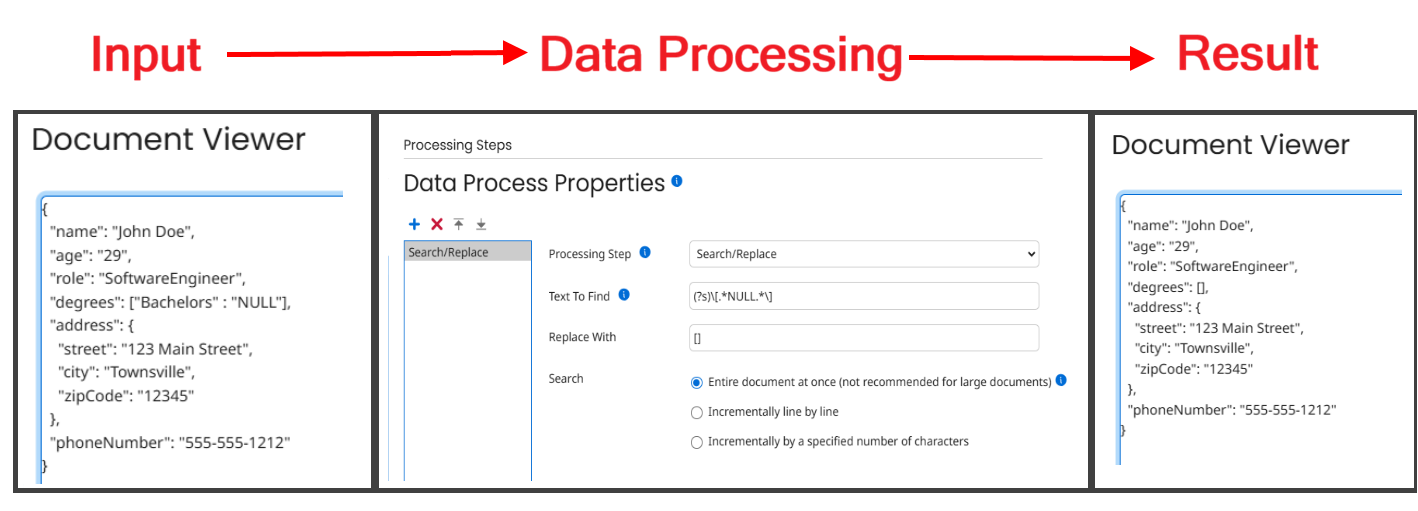
A similar situation is one where a segment, here an array, must be present for some later endpoint’s validation algorithm. However, that array must be empty, since we don’t need any data from it. To get Boomi to include the array structure, we have to put a value into one of the array fields, then go in later and remove it using Data Process > Search/Replace. You’ll want to make your dummy value something that won’t come up naturally and that is easy to look for. Here I’ve chosen NULL, all in caps.
The following Regex will find this array, clear it out, then replace the brackets so that it is still formatted correctly. You would naturally replace the generic name triggerFieldValue with whatever field you chose as your placeholder.
Text to Find: (?s)\[.*triggerFieldValue.*\]
Replace With: []
The layman’s terms for this expression are very similar to the earlier example, except that we had to escape the brackets in the Text to Find field. We actually want to find those brackets!
Removing the XML Declaration
XML documents frequently begin with a declaration header that looks something like this:
<?xml version="1.1"?>
Occasionally, you’ll need to remove this declaration line before proceeding with your logic flow. You can do this with a Data Process > Search/Replace that uses the following settings:
Text To Find: ^.*?[\r\n]\<
Replace With: <
In layman’s terms, this string means: “Start at the beginning (^), select everything (.*) up until the first (?) carriage return/line feed you find ([/r/n]), that is followed by a less-than symbol (\<), and replace it with a less-than symbol.
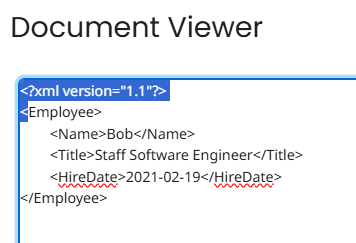
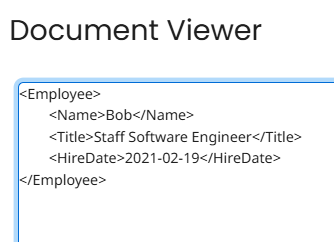
Technically, you don’t need to include the code to clear and restore the less-than symbol. Just ^.*?[\r\n] would be enough to clear out the first line. However, this would leave an ugly blank line at the top of the document, and to be clean about it, we are purposely selecting up through the first character on the next line, which, in an XML document, is pretty much guaranteed to be a < character. We clear it all away, including the empty line, and then replace that starting < character.
To illustrate, this is what the Regex selects:
And when that data is replaced with a ‘<‘, this is the usable XML that remains:
Removing Records from a Flat File with Multi-Line mode
We can use multi-line mode and a positional anchor to identify and remove records from a flat file.
This works for common flat-file formats where each line is a record, such as CSV. To start, you need to figure out how you’ll identify the records you want to eliminate. In my example below, I know that the first field in each record is a 6-digit Employee number, and let’s say that for this project, I need to get rid of all employee records that start with 1. You can do this as follows:
(?m)^1[0-9]{5}.*[\r\n]?
In layman’s terms, I want to search line-by-line ( (?m) ), specifically the very first field in the record (^), for ID values that begin with one (1), and have five further digits ( [0-9]{5} ). This will be followed by any amount of other data on this line (.*), and may end with a Carriage Return/Line Feed ( [\r\n]? ).
The ending CRLF is marked as optional (?) because the last entry in the document won’t end with a CRLF. You’ll also notice that I didn’t bother making my dot-star (.*) commands lazy by tagging them with a ?. This is because multi-line mode insulates the rest of the document. Regex will act on each line separately.
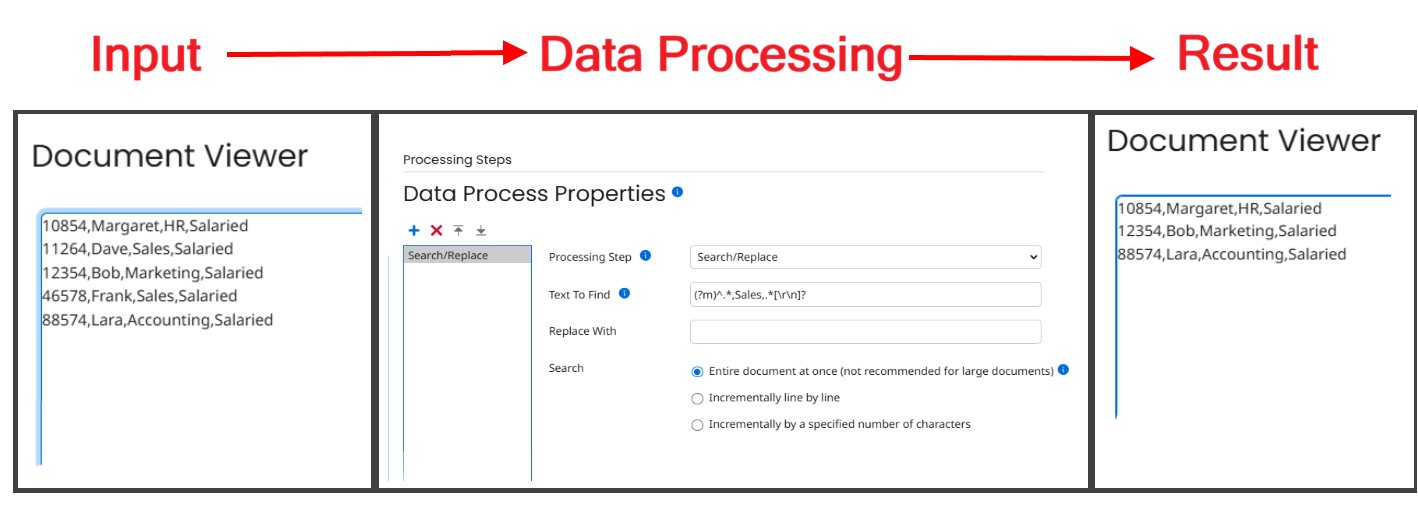
Here’s a similar example where I’m scanning for a field in the middle of the record – we’re eliminating any records for the Sales department. I enclosed the word Sales in commas, ensuring that this word is the entirety of the field, so that I don’t accidentally flag any other fields that just happen to have the word “Sales” in them.
(?m)^.*,Sales,.*[\r\n]?
Conclusion
Learning the use of Regular Expressions is an important part of getting the most out of Boomi’s features. Of course, there are many other scenarios and use cases than just the samples covered in this article! If you need expert assistance in building successful Enterprise integrations, XTIVIA is here to help! Contact us here to discuss the options.
Further Reading
Boomi articles regarding Regex:
Using Regex Groups to Extract Data from a Document
A good Regex Tester can be faster than making changes and repeatedly re-running your integration in test mode. The following example is commonly recommended and works very well: