

SUMMARY:
Stop losing custom data during Salesforce lead conversion. Learn how Lead Field Mapping automates data transfer, eliminates errors, and saves team time.
Table of contents
Introduction
When your sales team converts a qualified lead in Salesforce, all that carefully gathered custom data shouldn’t vanish into thin air—nor should your reps waste valuable time re-entering it manually into new records. Manual data transfer after conversion leads to lost productivity, frequent typos, and reporting inconsistencies across your CRM. Fortunately, Salesforce includes a powerful, built-in feature designed to solve this exact problem: Lead Field Mapping. Learn how automating your custom data flow keeps your pipeline accurate and lets your sales team focus on closing deals instead of administrative chores.
Stop Losing Data During Lead Conversion
When your sales team converts a qualified lead in Salesforce, what happens to all that custom data you carefully collected on the Lead? Does it disappear? Does someone have to re-enter it manually into the new Account, Contact, or Opportunity record?
The answer is Lead Field Mapping—a powerful but underutilized Salesforce feature that automatically transfers custom lead data to corresponding opportunity, account, and contact fields during lead conversion.
Why This Matters
Consider a typical scenario: Your sales team collects project-specific information on lead records—project location, resource requirements, project duration in hours, and budget parameters. Without field mapping, sales reps must manually copy this information from the lead to the new opportunity record after conversion.
This manual process creates three problems:
- Time waste: 2+ minutes per conversion multiplied across dozens of conversions monthly.
- Data errors: Typos, incomplete data, or accidentally skipped fields.
- Inconsistency: Different reps enter data differently, creating compliance and reporting issues.
With Lead Field Mapping configured, this data flows automatically to your Opportunity record the moment the lead converts—accurately and consistently, every time.
How It Works: The Basic Concept
Lead Field Mapping pairs custom lead fields with corresponding fields on Opportunities, Accounts, and Contacts. When a lead converts, Salesforce automatically populates the target fields with the source lead data.
Example mapping flow:
- Lead custom field “Site Location” → Opportunity custom field “Site Location”
- Lead custom field “Team Size” → Opportunity custom field “Team Size”
- Lead custom field “Estimated Hours” → Opportunity custom field “Estimated Hours”
Once configured, every future lead conversion automatically populates these opportunity fields without sales rep intervention.
Important Salesforce Rules Before You Start
Salesforce has specific compatibility rules you must follow. Most field types map only to identical types:
- Checkbox → Checkbox only
- Currency → Currency only
- Date → Date only
- Number → Number only
Text and Text Area fields have more flexibility and can map to text, text area, or unrestricted picklist fields. However, you cannot map formula fields (they’re read-only).
Target fields must be equal to or greater in length than source fields—a 100-character lead field cannot map to a 50-character opportunity field without data truncation.
Setting Up Lead Field Mapping: Four Steps
Step 1: Identify your custom lead fields. Know which lead fields you want to map (record their API names, not just labels).
Step 2: Verify or create target fields. Ensure corresponding fields exist on your Opportunity, Account, or Contact objects with compatible data types.
Step 3: Access the mapping configuration. In Salesforce Setup, go to the Object Manager and search for “Lead,” click on “Fields & Relationships,” and then click “Map Custom Lead Fields.”

Step 4: Create the mappings. Select each source lead field and assign it to the target opportunity/account/contact field. Tip: Remember to click Save! The Save button is buried at the bottom right of that screen, and it’s easy to overlook if you have a long list of fields. The changes do not auto-save!
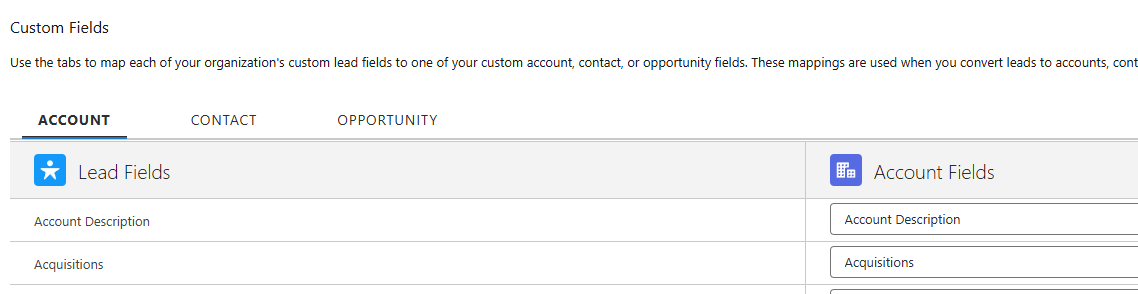
If you’re trying to map a field and it isn’t showing up, it’s usually because the field is not supported as a mapping type for the source field. Keep these restrictions in mind. Please refer to this Salesforce article, which has guidelines for how fields can be mapped.
Test Before Going Live
Create a test lead with sample data in all custom fields. Convert it and verify that the resulting opportunity has all the mapped data populated correctly. Verify for data truncation, type errors, or missing values before deploying to your sales team.
Best Practices
- Document your mappings in a spreadsheet for team reference
- Verify target field lengths accommodate source field data
- Don’t delete fields that have active mappings (remove mappings first)
- Audit mappings quarterly to remove unused ones
- Train your sales team on what data is automatically populated
The Result
Once configured properly, your sales team saves time, eliminates manual data entry errors, and maintains consistency across your CRM. Data flows seamlessly from leads to opportunities, keeping your sales pipeline accurate and your team focused on selling, not data entry.
Ready to implement Lead Field Mapping in your org? Start with one mapping to test, then expand as your team sees the time savings.
Navigating a Salesforce CRM implementation on your own can be overwhelming. Our Certified Salesforce CRM Experts make the process clear, efficient, and aligned with your business goals.
At XTIVIA, we’re more than consultants; we’re long-term strategic partners. From initial deployment to our flexible Salesforce CRM Admin On-Demand service, we ensure your Salesforce environment truly works for you.
Reach out today and let us help you get the most out of Salesforce CRM.